The AI tools on this site run on Google Gemini. To use them, you bring your own free API key — it takes about two minutes and needs no credit card. Here's how to get one and add it here.
Get a free key from Google AI Studio
Google AI Studio gives you a Gemini API key on its free tier — no billing setup, just a Google account. Once you've signed in at Google AI Studio:
-
In the left sidebar, under Manage, open the Dashboard.
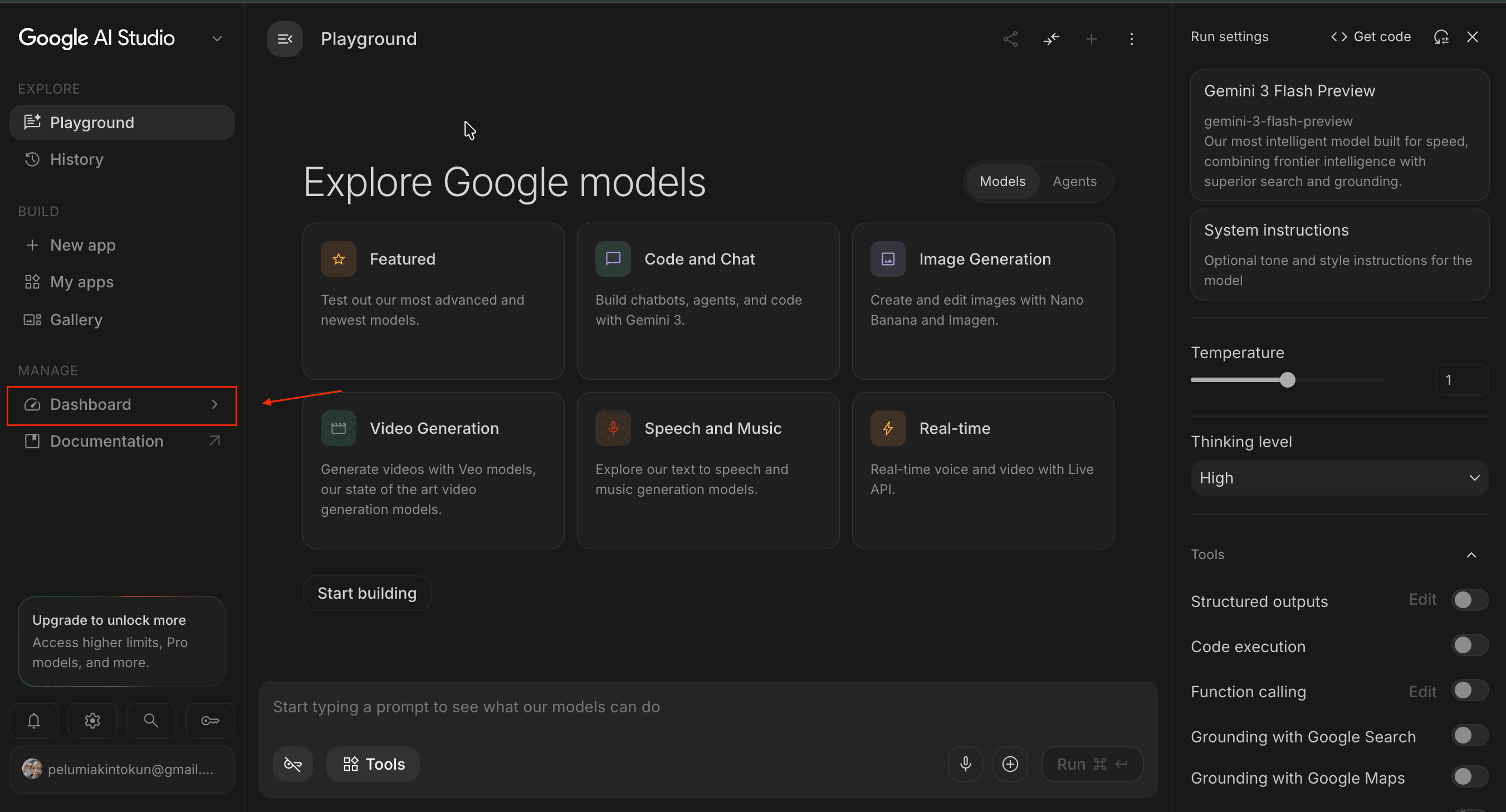
From the Playground, open Dashboard in the left sidebar. -
Select API Keys, then click Create API key in the top right.
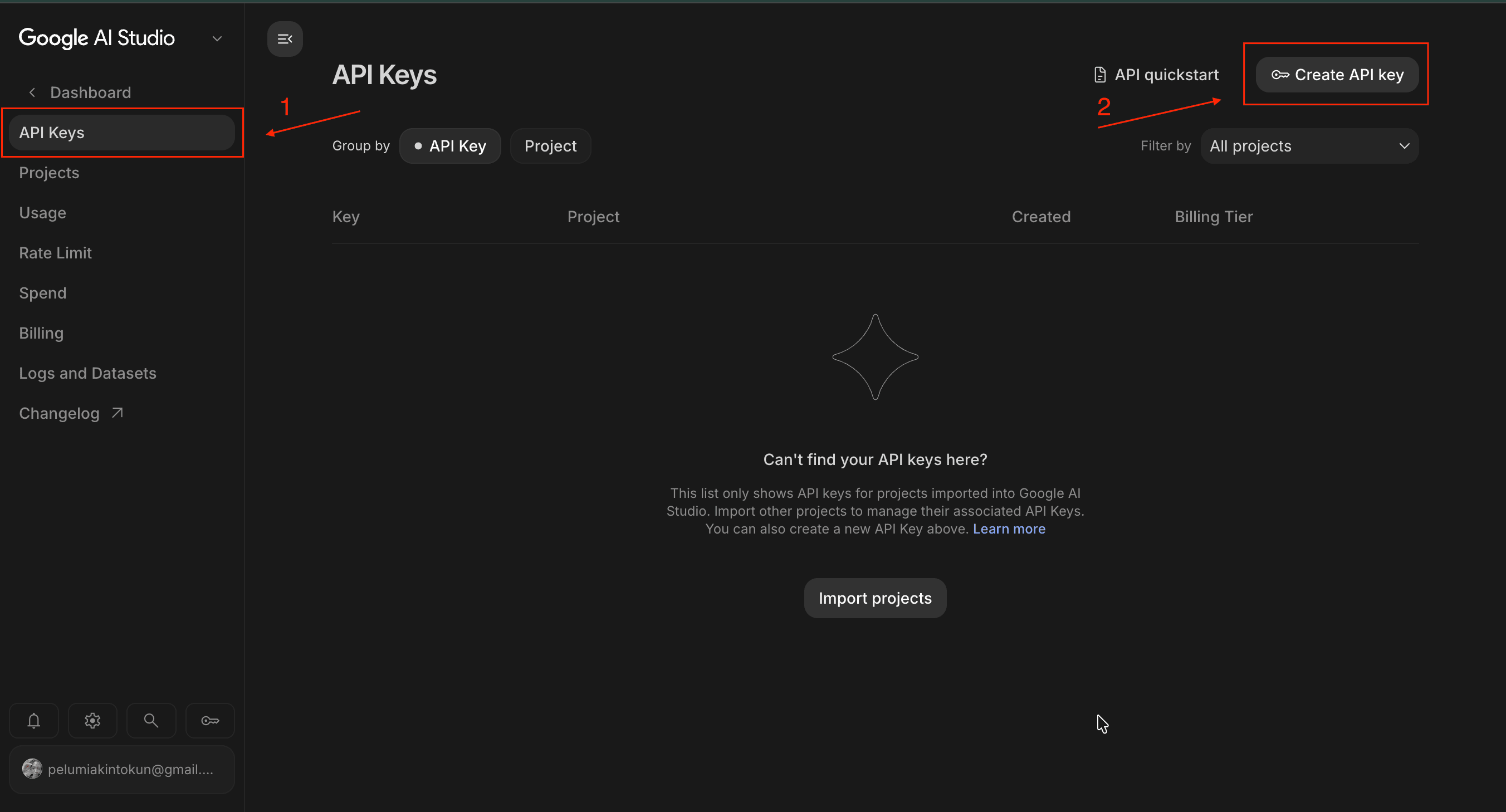
In the Dashboard, open API Keys and click Create API key. -
Name your key and choose a project — Default Gemini Project is fine — then click Create key.
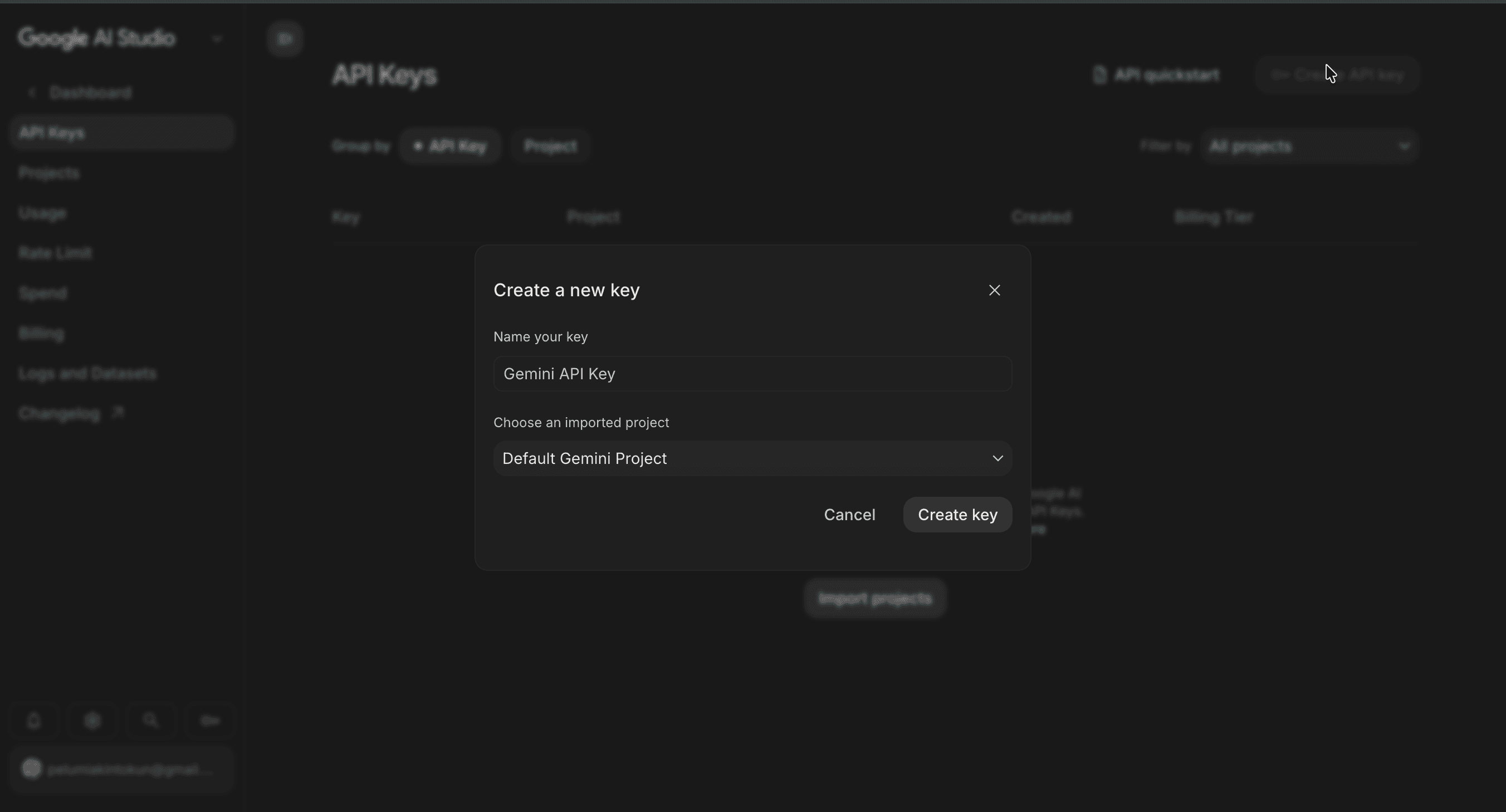
Name the key, pick a project, then create it. -
Click Copy key and store it somewhere safe. It usually starts with
AIza….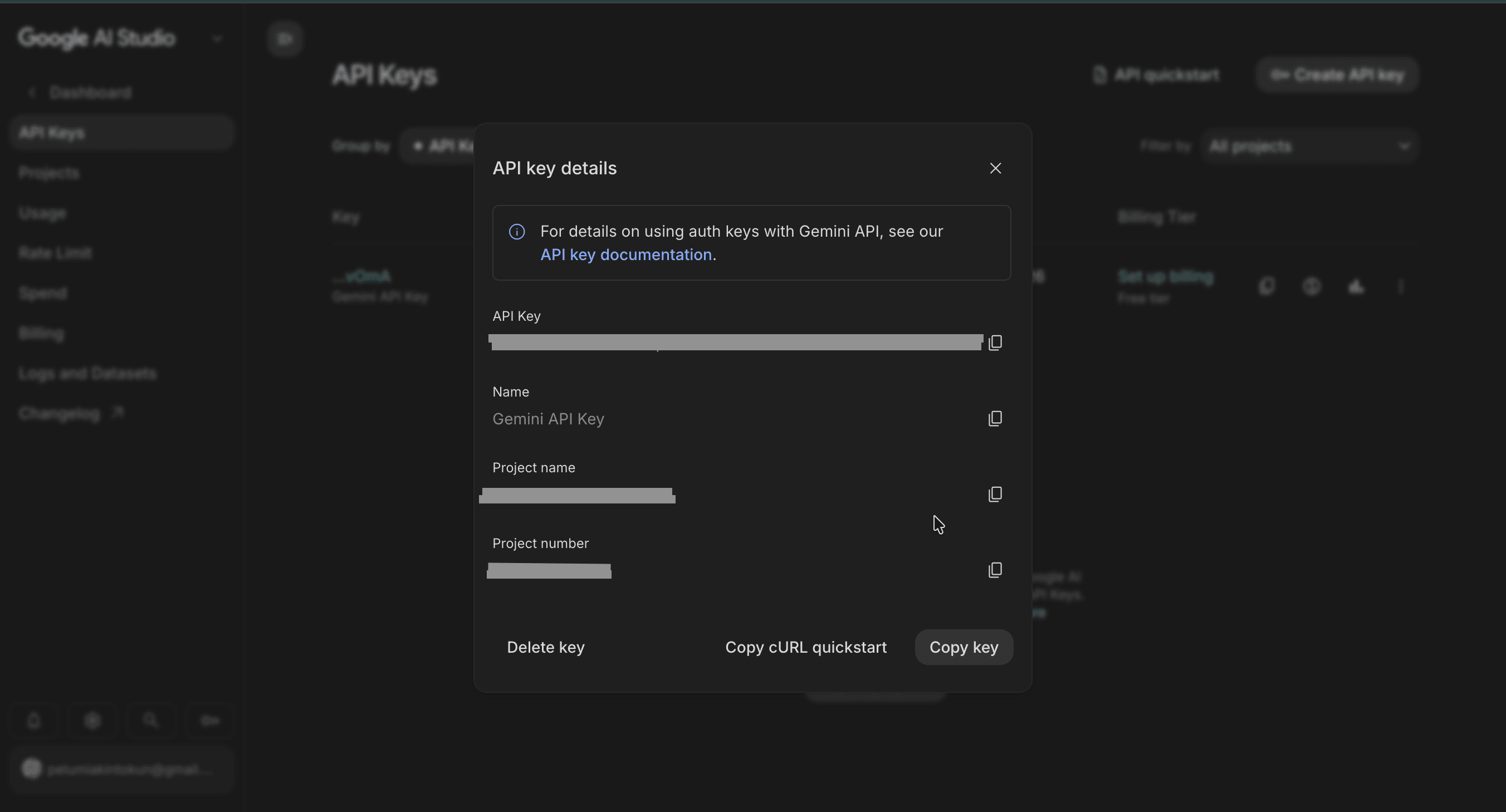
Copy your key from the API key details dialog.
Your key now appears in the list on the Free tier — ready to paste into the tools.
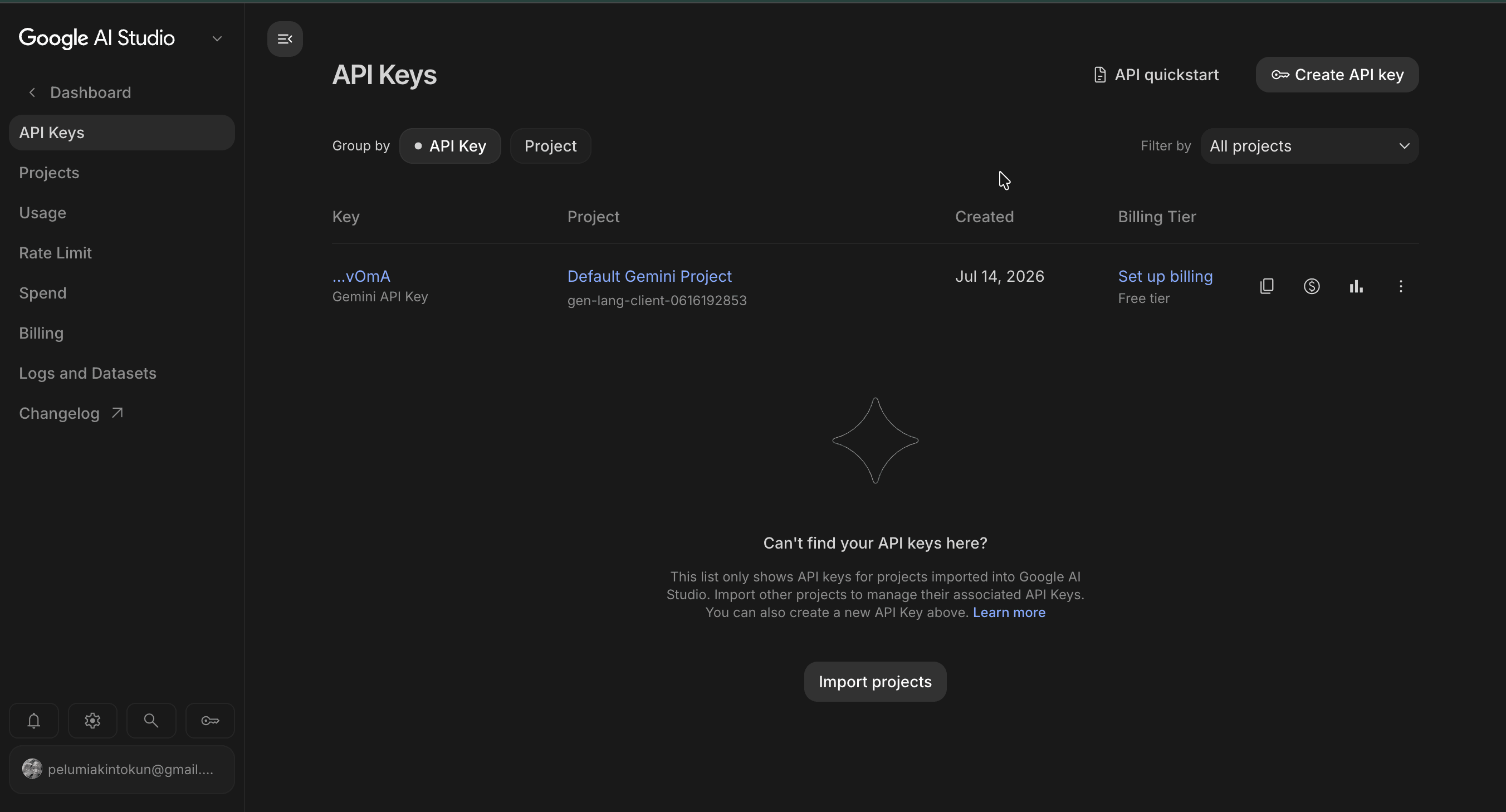
The key and project shown in these screenshots have since been deleted — they're only for illustration. Yours will look different, and you should keep your own key private.
Add your key to Tools by Timonwa
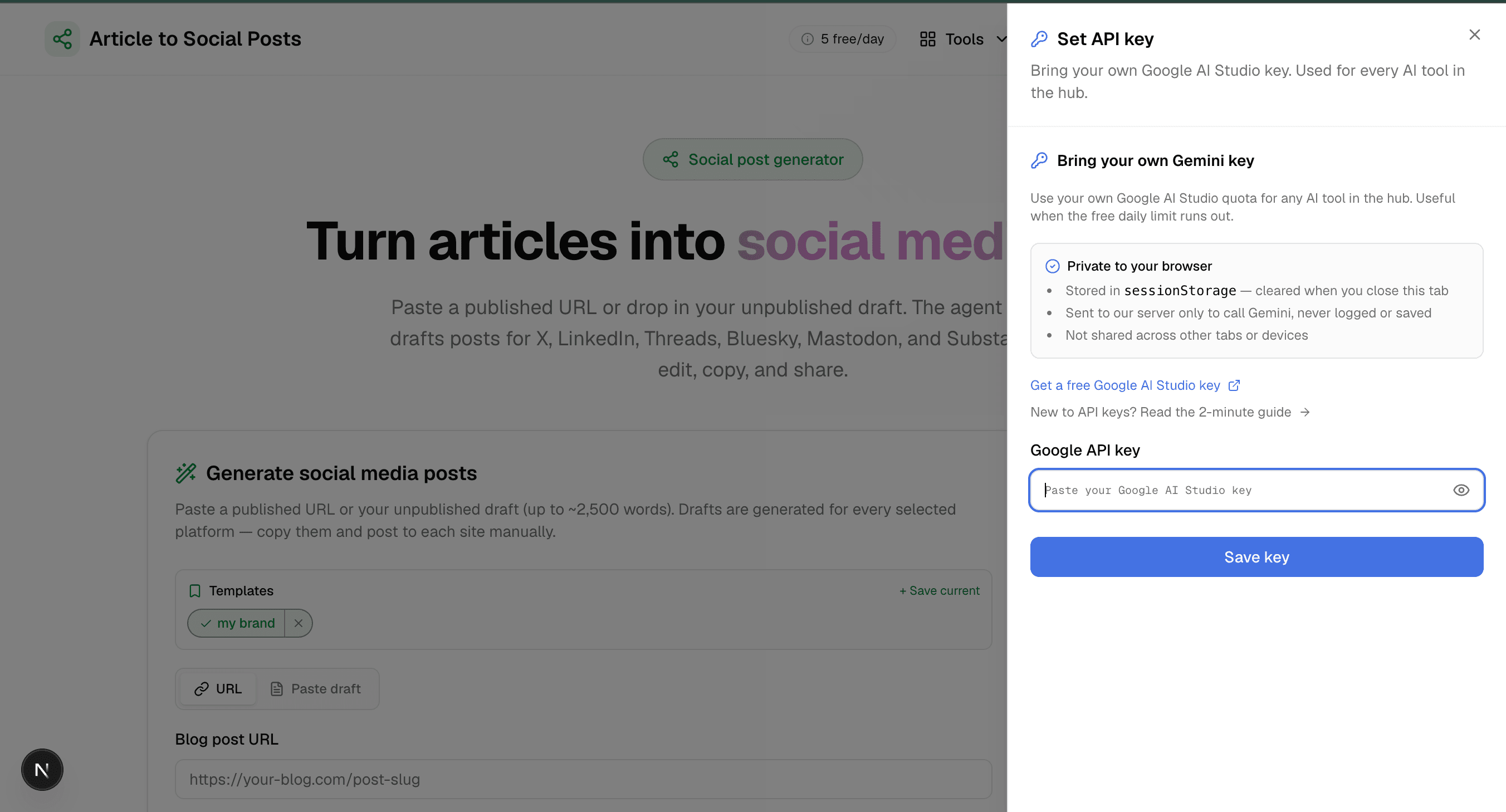
Back here, open the API key panel and paste your key. It's saved only in this browser tab.
- Click Set API key in the top bar — or use the button below.
- Paste your key into the Google API key field and click Save key.
- Optionally pick a model — Flash Lite is fastest and has the highest free limit.
- Open any AI tool and start generating. Your key is used automatically.
Good to know
- Free, no card. The free tier needs no billing. You only add payment if you upgrade for higher limits.
- Private to your browser. Your key lives in this tab's session storage — cleared when you close the tab, never saved to a database, and sent to the server only to make the Gemini call.
- Free-tier privacy. On the free tier, Google may use your prompts to improve their products, so keep anything confidential out.
If your key isn't working
- "API key not valid." Recopy the key from AI Studio — it contains no spaces or line breaks.
- "Not available in your country." The free tier isn't offered everywhere. Check Google's available regions.
- You've hit a limit. You've used the free quota for now. Switch to Flash Lite or try again in a bit.